
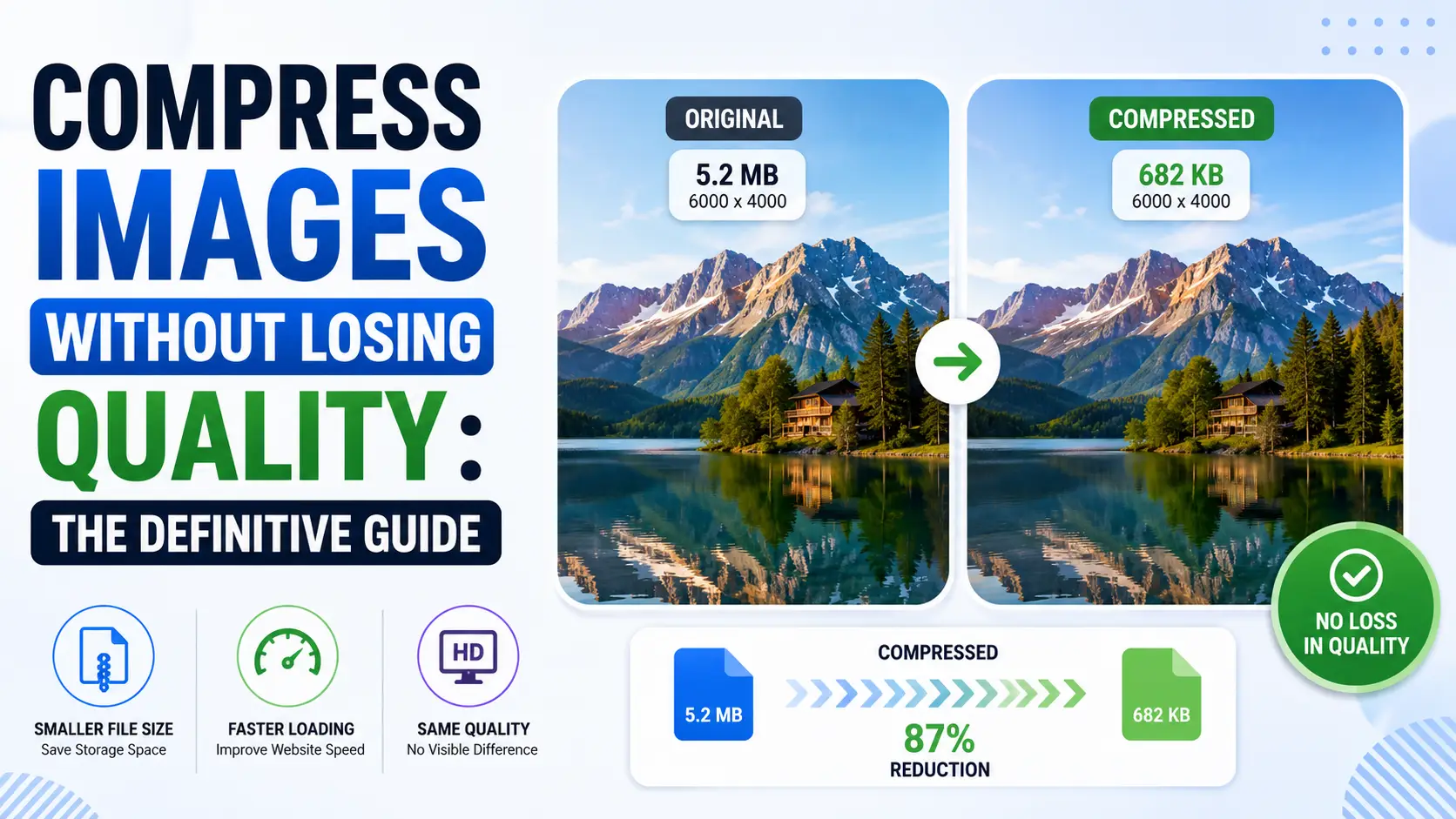
A 24-megapixel camera produces a RAW file around 30 MB, and a JPEG straight out of the camera around 8 MB. By the time that JPEG lands on a website, it should be 200 KB or less. That is a 40x reduction, and if you do it right, the viewer will not be able to tell the difference. If you do it wrong, you get banding in skies, blocky artifacts in shadows, and a homepage that takes nine seconds to load on mobile data. Image compression is one of those topics that looks simple from the outside — "just make the file smaller" — and reveals itself to be a deep, technical subject the moment you start caring about the output. This guide is what I wish I had read when I first started optimizing images for the web. It covers the underlying math of how compression works, the practical differences between formats, the right quality settings for each use case, and the specific tools that produce the smallest files at each quality level.
Lossy versus lossless: the fundamental trade-off
Every image compression algorithm falls into one of two categories. Lossless compression reduces file size by removing statistical redundancy without changing a single pixel. Compress the image, decompress it, and you get back the exact same bytes you started with. Lossy compression goes further by discarding information the human eye is bad at perceiving, achieving much smaller files at the cost of irreversible quality loss. Lossless compression works by finding repeated byte patterns and replacing them with shorter references. PNG uses the DEFLATE algorithm (the same one used by gzip), which builds a Huffman tree of byte frequencies and a sliding window of recent patterns. Lossless WebP uses a similar approach with a few enhancements: it can use a separate color palette, it can transform pixels with predicted values, and it supports a "subtract-green" transform that exploits the typical correlation between color channels. Lossless AVIF adds more sophisticated prediction modes derived from the AV1 codec's intra-frame compression. The compression ratios you get from lossless codecs are modest. A typical 12MP photograph compresses to maybe 70-80% of its uncompressed size. That is useful for archival but useless for web delivery — a 30 MB RAW becomes a 22 MB lossless PNG, which is still way too large to ship to a browser. Lossy compression is where the real savings come from. JPG, lossy WebP, and lossy AVIF all use a transform-based approach: convert the image to the frequency domain, quantize the high frequencies aggressively (because the eye is bad at seeing them), and then apply entropy coding to the result. This lets a 12MP photograph compress to 5-10% of its original size with no visible quality loss on most viewing conditions. Push harder, and you can get to 2-3% with acceptable quality for thumbnails and previews. The choice between lossy and lossless is not really a choice for web delivery. Use lossless only when you need pixel-perfect reproduction — typically for screenshots with text, technical diagrams, or images that will be re-edited later. For everything else, lossy is the right answer, and the only question is how aggressive to be.
How JPG actually works: the DCT in detail
JPG has been around since 1992, and the algorithm at its core is the Discrete Cosine Transform. Understanding how it works is the foundation for understanding every modern image format, because WebP and AVIF use variations of the same approach. The first step in JPG encoding is converting the image from RGB to YCbCr color space. Y is the luma channel (brightness), Cb and Cr are the chroma channels (color differences). This separation matters because the human eye is much more sensitive to brightness than to color — about twice as sensitive, in fact. JPG exploits this by chroma subsampling: the Cb and Cr channels are downsampled by 2x horizontally (4:2:2) or by 2x in both dimensions (4:2:0). This immediately halves or quarters the data devoted to color, with no perceptible quality loss. The second step is dividing the image into 8x8 pixel blocks. Each block is transformed from the spatial domain (pixel values) to the frequency domain (a set of 64 coefficients representing how much of each 2D frequency is present in the block). The lowest frequency is the average brightness of the block; the highest frequencies represent fine detail. This transform is mathematically lossless — you can invert it and get back the exact same pixels. The third step is quantization, and this is where the actual loss happens. Each of the 64 DCT coefficients is divided by a value from a quantization table and rounded to the nearest integer. The quantization table assigns small divisors to low frequencies (preserving them accurately) and large divisors to high frequencies (discarding most of their information). The "quality" setting in JPG encoders scales this table — quality 100 barely divides at all, quality 1 divides everything by huge values. The final step is entropy coding. The quantized coefficients are zigzag-scanned (so that low frequencies, which are usually non-zero, come first), run-length encoded (long runs of zeros become short codes), and Huffman coded (frequently-occurring values get short bit patterns). This is lossless compression applied to the already-quantized data. The reason JPG can shrink a file 10x while looking identical to the original is that most of the discarded high-frequency information was invisible anyway. The reason it falls apart at quality 50 and below is that the quantization becomes so aggressive that the 8x8 blocks become visible — you see the block boundaries and the artifacts within each block.
WebP and AVIF: where the modern formats win
WebP, released by Google in 2010, is based on the VP8 video codec. It uses the same DCT-based approach as JPG but with several improvements: it uses 4x4 or 16x16 macroblocks instead of fixed 8x8, it has better in-loop deblocking filters, and it supports both lossy and lossless modes in the same container. In practice, WebP beats JPG by 25-35% at equivalent quality across most image types. AVIF, finalized in 2019, is based on the AV1 video codec. AV1 was designed by the Alliance for Open Media as a royalty-free successor to HEVC, and it brings several major improvements over VP8. AVIF supports 10-bit and 12-bit color depth (versus JPG's 8-bit), HDR transfer functions, complex alpha channels, and intra-frame prediction with 35 different directional modes. In practice, AVIF beats JPG by 50% at equivalent quality — a 1 MB JPG becomes a 500 KB AVIF at the same visual quality. The reason AVIF is so much better than JPG is that AV1's intra-frame compression is significantly more sophisticated than JPG's 1992-era DCT. AV1 can choose from many prediction modes for each block, it has better transform types (including identity transforms for lossless regions), and its in-loop filtering removes artifacts before they become visible. AVIF essentially gives you a modern video codec's intra-frame compression applied to still images. The downside of AVIF is encoding speed. Encoding a 12MP AVIF at quality 80 takes around 400ms on a modern CPU, compared to 30ms for JPG and 80ms for WebP. For one-off image optimization this is irrelevant. For backend pipelines processing thousands of images, it adds up — but the 50% size reduction usually justifies the extra CPU time, especially if you are paying for egress bandwidth. Browser support in 2026 is no longer a real concern. WebP is at 98.4% global support, AVIF is at 96.2%. Both are missing only on a few legacy embedded browsers and old Android devices. For broad compatibility, serve JPG as a fallback using the <picture> element. For modern audiences, serve AVIF directly.
Quality settings that actually work
The "quality" parameter in image encoders is one of the most misused settings on the internet. People tend to either leave it at the default (often 75 for JPG, which is too low for hero images and too high for thumbnails) or crank it to 100 (which produces enormous files with no perceptible benefit over quality 90). Here are the settings I use, based on years of testing across thousands of images. For hero images, product photography, and any image where detail matters: AVIF or WebP at quality 80-85. At this setting, the image is visually indistinguishable from the original on a calibrated monitor at normal viewing distance. File sizes are typically 10-15% of the original JPG. If you must use JPG, quality 85-90 is the equivalent. For social media thumbnails, inline content images, and most editorial imagery: AVIF or WebP at quality 65-75. At this setting, there are very slight artifacts visible if you zoom in, but they are imperceptible at normal viewing size. File sizes are typically 5-8% of the original. JPG equivalent is quality 75-80. For email attachments where file size matters more than quality and where older email clients may not render modern formats: JPG at quality 65-75. File sizes are typically 8-12% of the original. Avoid WebP and AVIF here unless you know your audience is on modern email clients — Outlook desktop, in particular, has historically been bad at rendering modern image formats. For screenshots with text: PNG or lossless WebP. Never use lossy compression on text. The DCT block boundaries create visible blurring around character edges, and the quantization of high frequencies destroys the sharp transitions that make text readable. A 1080p screenshot compresses to about 500 KB as PNG and about 350 KB as lossless WebP. Worth it. For logos and graphics with sharp edges: SVG for vector content, PNG for raster content. Never use lossy compression on vector-derived content. The same applies to any image with large flat color regions — JPG will band them, AVIF will band them less but still visibly, and PNG will preserve them perfectly. The other lever you have is resolution. A 4K image at quality 60 often looks better than a 1080p image at quality 90, while being smaller. When in doubt, ship at the actual display resolution and let the encoder work at a moderate quality setting. Serving a 4K image to a 1080p display is wasting bandwidth on pixels the viewer will never see.
Chroma subsampling: the silent quality killer
When you save a JPG, you usually have a choice of chroma subsampling modes: 4:4:4 (no subsampling), 4:2:2 (halve chroma horizontally), or 4:2:0 (halve chroma both directions). Most encoders default to 4:2:0, which is fine for photographs but visibly degrades images with saturated color edges — text on colored backgrounds, product packaging, illustrations. The reason this matters is that 4:2:0 throws away 75% of the color information. The eye does not notice this in natural photographs, where colors blend smoothly into each other. But in synthetic images with sharp color transitions, the loss is visible as color bleeding at edges. A red logo on a white background, compressed with 4:2:0, will have a faint pink halo around the red edges. For photographs, 4:2:0 is the right choice. It reduces file size by 30-50% with no perceptible quality loss. For screenshots, illustrations, and any image with saturated colors and sharp edges, use 4:4:4 (no subsampling). The file will be larger, but the visual quality is dramatically better. WebP and AVIF have their own chroma subsampling options, with the same trade-offs. The defaults are sensible for most content, but if you are compressing images with text or sharp color edges and seeing color bleeding, switch to 4:4:4. One specific gotcha: some image editing software re-encodes the image every time you save, even if you have made no changes. This is called generation loss, and it accumulates. After five or ten save cycles, the image will be visibly degraded even if each individual save was at high quality. Always keep a master copy in a lossless format (PNG, TIFF, or the original RAW) and only export to a lossy format as the final step.
How EditPhotosForFree's compressor works under the hood
Our compressor runs entirely in the browser, using the WebCodecs API for AVIF encoding where supported and Canvas-based re-encoding for JPG, PNG, and WebP. WebCodecs is a relatively new browser API that exposes hardware-accelerated video and image codecs directly to JavaScript, bypassing the older and slower Canvas.toBlob approach. On a 2024-era browser with WebCodecs support, AVIF encoding is roughly 5x faster than Canvas-based alternatives. The compression workflow is straightforward: drop an image onto the dropzone, choose your target format and quality, see a live before/after preview, and download. The preview shows the original on the left and the compressed version on the right, with a slider you can drag to compare at any zoom level. File sizes for both are displayed prominently, so you can see exactly how much you are saving. For batch compression, the tool supports up to fifty images at once, each processed in parallel. You can apply the same settings to all images or set per-image overrides for cases where one image needs different handling. Output is available as individual downloads or as a ZIP archive. There is no watermark, no signup, no file size limit beyond what your device's RAM can handle, and no upload to any server. The tool also exposes a few advanced settings that most users will not need but that matter for production work: chroma subsampling mode (4:4:4, 4:2:2, 4:2:0), interlaced PNG output, progressive JPG output (which renders progressively as it downloads, useful for slow connections), and EXIF metadata stripping (which can save a few KB per image and removes potentially sensitive location data). One feature worth highlighting is the SSIM quality metric shown in the preview. SSIM (Structural Similarity Index) is a perceptual quality metric that correlates better with human judgment than simple file-size ratios. A SSIM of 1.0 means the compressed image is identical to the original; 0.95+ is generally indistinguishable; 0.90-0.95 has very slight artifacts visible only at high zoom; below 0.90 the artifacts are noticeable. Our tool shows the SSIM in real time as you adjust the quality slider, so you can find the lowest quality setting that still meets your visual quality bar.
When to compress and when not to
Compression is a tool, not a goal, and there are cases where you should not compress aggressively even though you technically can. The most common mistake I see is over-compressing images that will be displayed at small sizes anyway. If an image is going to be displayed at 300x200 pixels on a retina display (so 600x400 actual pixels), there is no point shipping a 4K source image compressed to quality 95. Resize first, then compress — the result will be dramatically smaller and visually identical. The second common mistake is under-compressing hero images out of fear of quality loss. A 12MP hero image at quality 95 is typically 800 KB - 1.2 MB. The same image at quality 80 is 200-300 KB and is visually indistinguishable on any normal display. The difference in page load time is meaningful, especially on mobile. If you are shipping quality 95+ images to the web, you are leaving 60-70% of your bandwidth savings on the table for no perceptible benefit. The third mistake is compressing images that have already been compressed. Re-compressing a JPG that came out of a camera produces compounding artifacts. If you must re-compress (for example, to resize for a different use case), start from a lossless master, not from the previously-compressed version. Finally, there are cases where you should not compress at all. Images destined for print should be kept at full resolution in a lossless format. Images that will be re-edited later should be kept in a lossless format. Images that contain text or fine detail that will be scrutinized (medical imagery, technical diagrams, art reproductions) should be kept lossless or compressed only at very high quality. For most web use cases, though, aggressive compression is the right answer. Modern formats like AVIF and WebP can reduce file sizes by 80-90% with no perceptible quality loss, and the impact on page load time, bandwidth costs, and user experience is enormous. The default should be aggressive compression, with exceptions only where they are genuinely needed.
Compression in production: build pipelines and CDNs
Compressing one image in a browser is a UX problem. Compressing images across a production website is an architecture problem, and the right answer depends on your stack, your traffic, and your tolerance for build-time versus request-time work. The patterns I have shipped repeatedly break down into three categories: build-time compression, request-time compression, and CDN-based compression. Build-time compression is the right default for static sites and most content-driven applications. Tools like Next.js's next/image, Gatsby's gatsby-plugin-image, Astro's astro:assets, and Eleventy's image plugin all generate optimized variants at build time. You commit the original image; the build produces AVIF, WebP, and JPG variants at multiple resolutions; the HTML uses the <picture> element to serve the right variant. The advantage is zero runtime cost — every variant is pre-generated. The disadvantage is that adding a new image requires a rebuild, which is a problem for user-uploaded content. Request-time compression is the right choice for user-uploaded content. The pattern: when a user uploads an image, store the original in object storage (S3, GCS, R2). On first request for a compressed variant, run the compression, cache the result in a CDN, and serve subsequent requests from the cache. Libraries like Sharp (Node.js), libvips (C), and Pillow (Python) make the compression itself fast — under 100ms for a 12MP image at quality 80. The challenge is the cold-path latency: the first request for any variant takes 100-500ms, which is too slow for a synchronous user experience. The fix is to compress on upload asynchronously (via a worker queue) and serve a placeholder until the variants are ready. CDN-based compression is the easiest to adopt and the most expensive at scale. Cloudinary, Imgix, Cloudflare Images, Cloudflare Image Resizing, and AWS CloudFront + Lambda@Edge all offer URL-based image transformation. You request https://cdn.example.com/image.jpg?w=800&format=avif and the CDN compresses on demand. The advantage is zero infrastructure: you upload originals, the CDN handles everything else. The disadvantage is per-request cost — typically $0.01 to $0.05 per 10,000 requests, which adds up quickly on high-traffic sites. The hybrid pattern that works best for most production sites: build-time compression for designer-controlled images (hero images, illustrations, icons), CDN-based compression for user-uploaded content, and aggressive caching at every layer. The <picture> element with explicit width and format attributes lets the browser pick the right variant, which means you can ship AVIF to capable browsers and JPG to legacy ones without writing any JavaScript. Quality metrics that matter in production: LCP (Largest Contentful Paint) for the hero image, CLS (Cumulative Layout Shift) caused by image loading, and total image bytes per page. Lighthouse and WebPageTest measure these automatically. Aim for LCP under 2.5 seconds on mobile, CLS under 0.1, and total image bytes under 500KB for a typical article page. These are not arbitrary targets — they are the thresholds Google uses for Core Web Vitals, which affect search ranking. One underused optimization: lazy-loading with loading=lazy on the img tag. This defers loading of below-the-fold images until the user scrolls near them, which can cut initial page weight by 50% on image-heavy pages. Native lazy-loading is supported in all modern browsers and requires no JavaScript. For above-the-fold images, use loading=eager (the default) and prioritize with fetchpriority=high on the hero image.
Image compression for web performance: Core Web Vitals impact
Google's Core Web Vitals use Largest Contentful Paint (LCP) as a ranking signal, and image weight is the single largest contributor to LCP on most websites. A hero image that loads in 1.2 seconds is the difference between a passing and failing LCP score. The practical impact is direct: sites that compress images aggressively rank higher in search results, load faster on mobile, and consume less bandwidth for users on metered connections. The numbers are stark. A 12MP hero image at quality 95 JPG is typically 1.2 MB. The same image at WebP quality 80 is 280 KB — a 77% reduction with no perceptible quality loss on any normal display. At AVIF quality 80, it drops to 180 KB — an 85% reduction. For a page with five content images, the total savings can be 3-4 MB, which on a 3G connection (typical in developing markets) translates to 8-12 seconds of loading time. That is not a marginal improvement; it is the difference between a usable site and an abandoned one. The right compression strategy for web performance follows a hierarchy. First, resize to the exact dimensions the layout requires — do not ship a 4K hero image to a 1080p display slot. Second, choose the right format using the picture element with AVIF, WebP, and JPG sources. Third, apply quality settings based on image role: 80-85 for hero images, 65-75 for thumbnails, lossless for text and graphics. Fourth, lazy-load images below the fold with the loading attribute. This hierarchy reduces total page weight by 80-90% compared to naive JPG embedding, and every step is measurable with browser DevTools. For e-commerce sites where product images directly drive conversion, the compression-quality trade-off has a measurable revenue impact. Studies consistently show that pages loading in under 2 seconds convert 50% better than pages loading in 4-5 seconds. Since product images typically account for 60-80% of page weight on e-commerce sites, image compression is not just a performance optimization — it is a revenue optimization. The investment in proper compression infrastructure pays for itself within weeks.
Compression for email: the Outlook problem and workarounds
Email is the one context where image compression still requires careful format selection, because email client support for modern image formats is inconsistent. Outlook desktop (still used by a significant portion of corporate users) has historically not rendered WebP or AVIF. Gmail renders both. Apple Mail renders both. But Outlook desktop renders a broken image icon where a WebP should be, which means your carefully optimized email hero image simply does not appear for a chunk of your audience. The practical rule for email images is: use JPG for anything the recipient needs to see. JPG has 100% email client support, and the compression quality at settings 75-85 is more than sufficient for email viewing conditions (typically a phone screen at arm's length). PNG for images that require transparency (logos with transparent backgrounds). Never use WebP or AVIF in email unless you have verified your audience is entirely on modern clients — and even then, provide a JPG fallback. The other email-specific compression consideration is file size per image. Most email clients cap total email size at 102 KB for Gmail (which clips larger emails) and 10-20 MB for other clients. A typical marketing email has 3-5 images totaling 300-500 KB. At JPG quality 75-85, each image is 50-100 KB, which fits comfortably within limits. At quality 95, images balloon to 300-500 KB each, which pushes the total email size into clipping territory for Gmail. Progressive JPGs are worth mentioning for email. A progressive JPG renders in multiple passes — first a low-quality version, then progressively sharper. On slow connections, this gives the recipient something to look at immediately rather than waiting for the full image to download. Most modern image editors export progressive JPGs by default. If yours does not, the setting is usually called "progressive" or "interlaced" in the export dialog. One underused technique for email is SVG for logos and icons. SVG is resolution-independent, tiny in file size (typically 2-5 KB for a logo), and renders crisply on any display. The limitation is that SVG does not support photographic content — it is a vector format. For logos, icons, and simple graphics in email headers, SVG is superior to any raster format. For hero images and product photography, stick with JPG.
Batch compression workflows for photographers and agencies
Professional photographers and agencies face a different compression challenge than web developers. They are not optimizing a handful of hero images; they are processing hundreds or thousands of images per shoot, and the compression needs to happen quickly, consistently, and with minimal manual intervention. The workflow I recommend for high-volume photography is: shoot RAW, edit in Lightroom or Capture One, export to a lossless intermediate format (TIFF or lossless WebP), then batch-compress to final delivery formats using a dedicated tool. The lossless intermediate is your master — it preserves full quality for future re-edits. The batch compression step is where you apply format-specific settings for different delivery targets. For a wedding photographer delivering 800 images to a client, the typical batch is: 400 WebP at quality 80 for the online gallery (fast loading, good quality), 400 JPG at quality 85 for download (universal compatibility), and 50 PNG for images that will be printed or enlarged. The total processing time with a modern batch compressor is about 3-5 minutes on a 2024-era laptop. Without batch compression, manually exporting each image would take 2-3 hours. The economics matter. A photographer delivering 800 images at 3 MB each (uncompressed JPG) generates 2.4 GB of gallery data. At WebP quality 80, the same 800 images total about 600 MB — a 75% reduction. For a gallery hosted on a platform with bandwidth-based pricing (most photo hosting services), this translates directly to lower hosting costs and faster delivery to clients. For a gallery embedded on a portfolio website, it translates to faster page loads and lower bounce rates. The batch compression tool should expose three controls: target format (WebP, AVIF, JPG, PNG), quality level (numeric slider), and metadata handling (strip EXIF, retain EXIF, or retain only copyright). Strip EXIF for web delivery (saves 5-15 KB per image and removes potentially sensitive GPS data). Retain EXIF for archival and client delivery. The quality slider should show a live file-size estimate so you can balance quality against target file size without guessing.
Conclusion
Image compression is a solved problem in 2026, but only if you use the right tools and the right settings. AVIF and WebP are the modern formats of choice, offering 50% and 30% size reductions respectively over JPG at equivalent quality. The right quality setting depends on use case — 80-85 for hero images, 65-75 for thumbnails, lossless for text and graphics. Always resize before compressing, never re-compress already-compressed images, and use the <picture> element to serve modern formats with JPG fallback. The compression itself is just math; the judgment about when and how to apply it is what separates a fast website from a slow one.