
Build Photo Collages
In Your Browser
A collage maker that runs entirely in your browser. Combine multiple photos with templates, shape masks, filters, text, and stickers — then export at full resolution. No signup, no watermark, no uploads.
Free forever. No signup required. Works in your browser.
What Is a Photo Collage?
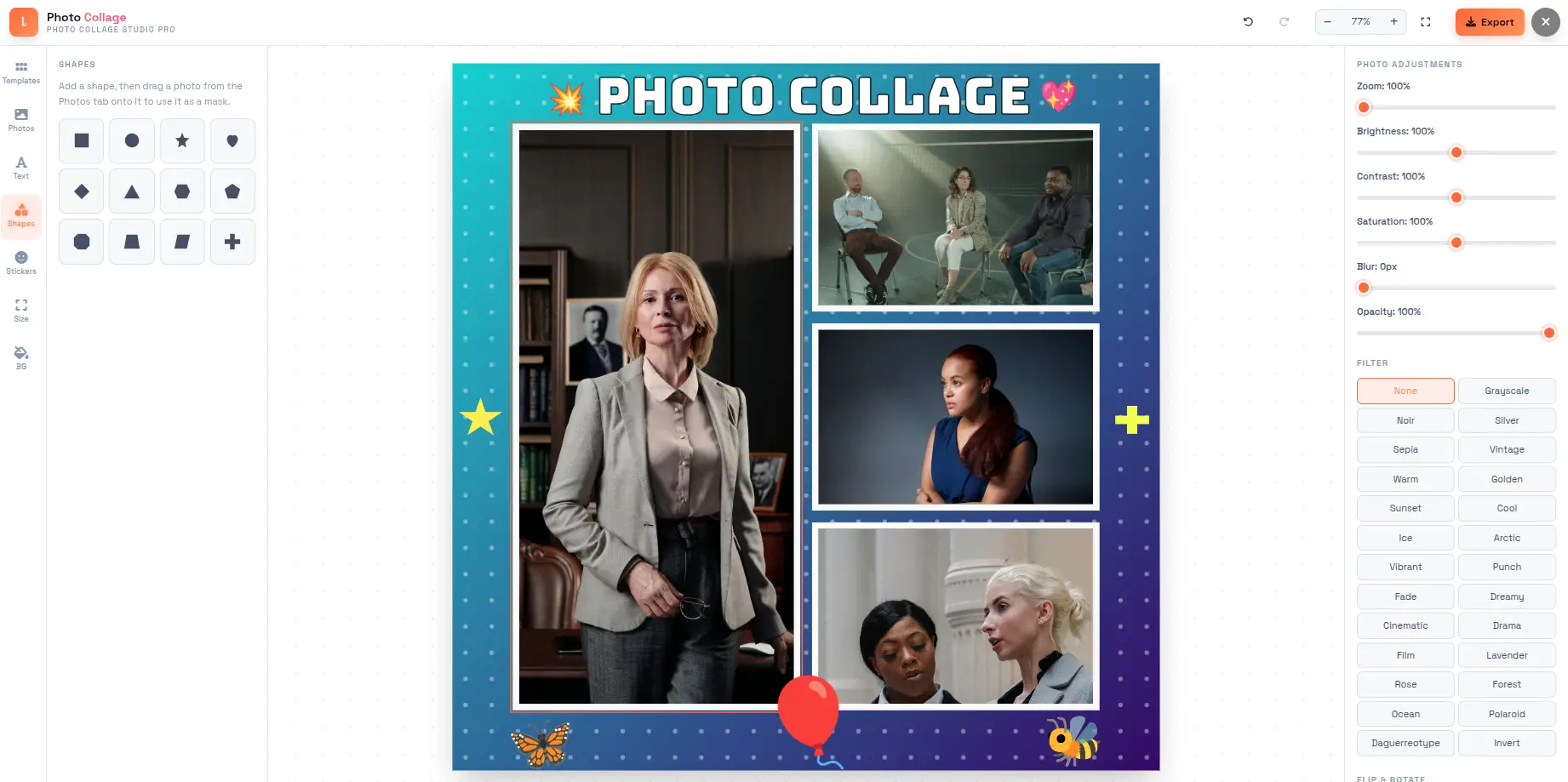
A photo collage is a single image composed of multiple photographs arranged together, often with overlapping, borders, or intentional spacing between each photo. Unlike a simple grid, a collage can incorporate shape masks, text overlays, filters, stickers, and custom backgrounds to create a unified composition from separate visual elements.
Composition Types
Grid collages arrange photos in rows and columns with uniform spacing — the most common layout for social media posts and product showcases. Mosaic collages use irregular sizes and placements for a more organic, scrapbook-style look. Shape-based collages clip photos into geometric forms like circles, hearts, stars, or hexagons, which are then arranged on a canvas. Each type serves a different visual purpose and audience expectation.
Aspect Ratios
The aspect ratio of a collage determines its shape — 1:1 for Instagram posts, 4:5 for portrait-oriented feed images, 16:9 for YouTube thumbnails and presentations, 9:16 for Stories and Reels. Print-oriented ratios like A4 and A3 follow different proportions entirely. Choosing the right aspect ratio before starting ensures the final composition fits the target platform or medium without cropping.
Shape Masks
A shape mask clips a photo to a specific geometric outline — circle, star, heart, diamond, hexagon, triangle, and others. The photo fills the shape, and only the area inside the shape is visible. This technique allows collages to move beyond rectangular cells into custom layouts where each photo contributes to an overall design. Shape masks can be applied to individual cells or used as standalone overlays.
Digital vs. Physical Collages
Traditional paper collages involve cutting and gluing physical photographs onto a board, which is time-consuming and permanent. Digital photo collages offer undo/redo history, instant template switching, per-photo editing, and lossless export. A digital tool like Photo Collage Maker allows unlimited experimentation with different layouts, filters, and arrangements before committing to a final composition.
How Photo Collages Work
From selecting photos to arranging them on a canvas — the process behind every collage.
Canvas Setup
The canvas defines the overall dimensions and aspect ratio of the final output. Templates provide pre-defined cell layouts that adapt to the selected aspect ratio.
Photo Placement
Photos are uploaded and placed into cells or freeform positions on the canvas. Each photo can be panned, zoomed, rotated, or flipped independently within its cell.
Styling
Filters, borders, spacing, corner radius, and backgrounds are applied per-cell or globally. Text overlays, stickers, and shape masks add additional creative layers.
Rendering
The final composition is rendered to a raster image (PNG or JPG) at the canvas resolution. All layers — photos, masks, text, stickers, backgrounds — are composited into a single output file.
Why Layouts and Resolutions Matter
A collage intended for Instagram Stories (9:16, 1080x1920 pixels) has very different requirements than one intended for an A4 print (210x297mm at 300 DPI). Template selections filter available layouts based on the chosen aspect ratio, so starting with the right canvas size prevents awkward cropping or stretching later. Photo Collage Maker supports 12 standard aspect ratios and 16 platform presets, each optimized for its target output.
A Brief History of Photo Collages
From cut-paper art to digital canvases — the photo collage has evolved alongside the tools available to create it.
Early Collage in Art
Cubist painters Pablo Picasso and Georges Braque began incorporating newspaper clippings, sheet music, and other paper fragments into their paintings around 1912. This technique, which they called papier collé (pasted paper), is widely considered the origin of collage as an art form. Dadaists and Surrealists later expanded the practice through photomontage — combining multiple photographs into a single composite image.
Digital Collage Tools
The rise of Adobe Photoshop in the early 1990s made digital collage creation accessible to designers and photographers. Layers, masking, and blending modes allowed for complex compositions that would have been difficult or impossible to achieve with physical cut-and-paste methods. Digital scrapbooking and photo montage software emerged as consumer-friendly alternatives.
Smartphone Photography
As smartphone cameras improved and social media platforms grew, the demand for quick, attractive photo collages increased. Mobile-first apps introduced template-based collage builders that automated layout, spacing, and alignment. Instagram's rise made the square 1:1 format the most commonly used collage canvas, and grid layouts became the default aesthetic for sharing multiple photos in a single post.
Browser-Based Collage Tools
Modern collage tools run entirely in the browser using Canvas and WebGL, eliminating the need for software installation or cloud uploads. Template libraries have expanded to hundreds of layouts with per-photo editing, shape masks, and real-time preview. The focus has shifted from basic grid arrangements to full creative studios that combine filters, text, stickers, and advanced compositing — all without sending photos to a server.
Everything You Need
Every feature you need to build, customize, and export photo collages — without leaving your browser.
50+ Designer Templates
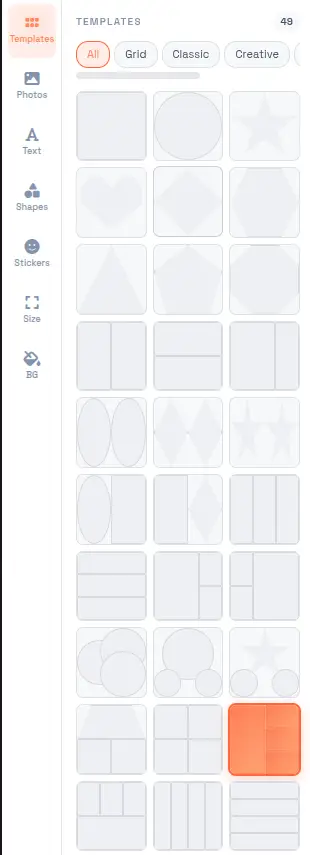
Templates range from single-photo layouts to 12-photo mosaic grids. Seven categories — grid, classic, creative, mosaic, circles, shapes, and mixed — cover most common collage compositions. Click any thumbnail to apply it instantly.
10+ Shape Masks
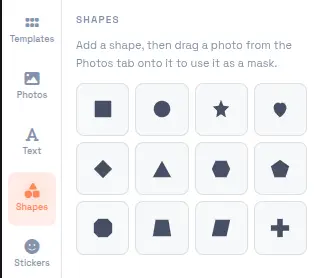
Apply circle, star, heart, diamond, hexagon, triangle, pentagon, octagon, trapezium, parallelogram, or cross masks to any cell. Shape overlays can also be used as standalone elements with photo masking for creative compositions.
25+ Cinematic Filters
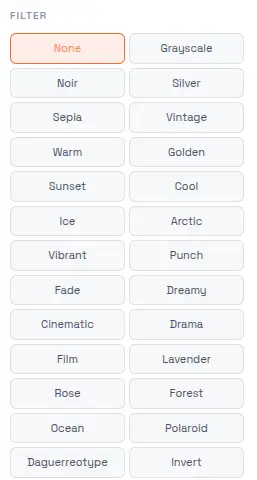
Apply vintage, sepia, noir, sunset, neon, polaroid, daguerreotype, and 18 other filters to individual photos. Each photo also has independent brightness, contrast, saturation, blur, and opacity controls for fine-tuned adjustments.
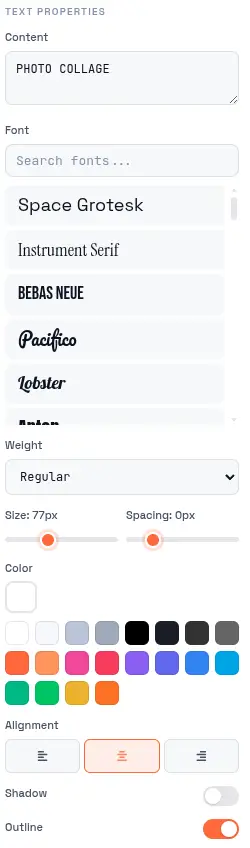
Text & Typography
Seven text presets with 13 fonts — Space Grotesk, Bebas Neue, Pacifico, Playfair Display, Caveat, and more. Adjust font size, weight, color, alignment, letter-spacing, shadow, and outline independently for each text element.
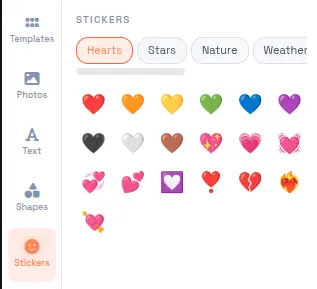
140+ Stickers
Stickers organized across 8 categories — Hearts, Stars, Nature, Weather, Animals, Party, Symbols, and Food. Each sticker is resizable and repositionable. Shape overlays with photo masking add additional creative options.
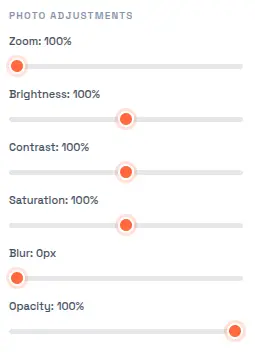
Per-Photo Adjustments
Every photo in the collage has independent controls — pan, zoom, flip horizontal/vertical, rotate 90 degrees, and adjust brightness, contrast, saturation, blur, and opacity. No global adjustments that affect the entire collage.
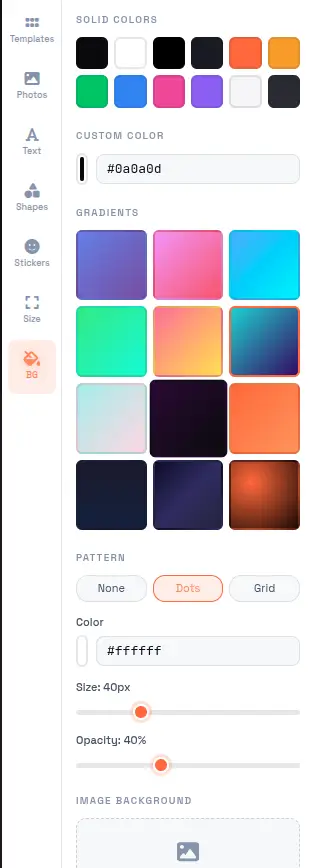
Backgrounds & Patterns
12 solid color presets, 12 gradient presets, a custom color picker, and dot/grid patterns. Backgrounds can be applied to the canvas or individual cells for layered visual depth.
High-Resolution Export
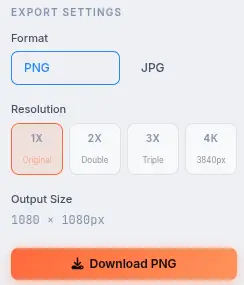
Export as PNG or JPG at full canvas resolution — up to 2560x1440 for Google Banners. No watermark, no compression artifacts, no signup required. Files are ready for social media, print, or any other use immediately.
What Makes It Different
Not a basic grid tool — a full collage editor with per-photo controls and browser-level privacy.
100% Browser-Based
All collage generation happens in your browser using Canvas and WebGL. No uploads, no servers, no data retention. Your photos never leave your device — which matters when working with personal memories, client images, or sensitive content.
12 Aspect Ratios + 16 Social Presets
Standard ratios (1:1, 4:5, 16:9, A4, A3, and more) cover print and general use. Platform presets for Instagram, Facebook, X/Twitter, LinkedIn, Pinterest, YouTube, TikTok, and WhatsApp set the canvas to the exact dimensions each platform requires.
Full Canvas Control
Drag elements freely, resize with handles, rotate with handles, zoom with the slider or mouse wheel. The canvas supports multi-step zoom, fit-to-screen, and precise positioning — no snap-to-grid constraints unless you enable them.
50-Step Undo History
Every action — template selection, photo placement, filter application, text editing — is tracked in a 50-step history stack. Ctrl+Z undoes, Ctrl+Y redoes. The full project state is restored at each step, not just individual element changes.
Perfect for any project
From Instagram posts to printed albums — build a collage for any use case with the right template and settings.
Instagram Posts & Stories
Use 1:1 (1080x1080) for feed posts or 9:16 (1080x1920) for stories and reels. Combine 3-6 photos with text for carousel-style storytelling in a single image. The text presets and sticker library are designed for social media aesthetics.
Travel Memories
The "Mosaic" or "1 Big + 5" templates work well for combining trip photos into a single shareable image. Add location text using the Caveat handwriting font, apply a vintage or polaroid filter, and export at the right aspect ratio for your platform.
Wedding & Event Albums
Heart and circle shape masks create romantic compositions. Vintage or polaroid filters give a timeless quality. Export at A4 or A3 size for printing — the high-resolution output holds up at physical sizes that social media exports do not target.
Product Showcases
The "1 + 4" or "1 Big + 5" templates highlight a hero product alongside detail shots. Export at 1200x630 for Facebook link previews or 1200x675 for X/Twitter cards. The clean grid layouts work for e-commerce listings and catalog pages.
Birthdays & Celebrations
Sticker categories (balloons, cake, confetti, party hats) and bold text using Bebas Neue or Pacifico create festive compositions. The "Honeycomb" template with hexagon shape masks gives a distinctive look for celebration announcements.
Business Menus & Catalogs
Use 4x3 grids (12 photos) for menu boards, product catalogs, or service galleries. Add a header text band and a custom background color matching your brand. Export at print-ready sizes for physical materials.
School & Education
Create class photo composites, project presentations, or visual study guides. The grid templates organize multiple images clearly, and text overlays can label each section with student names or topic headings.
Mood Boards & Design
Combine reference images, color swatches, and text notes into a single visual document. The shape masks and custom backgrounds let you build mood boards that go beyond simple grid layouts for design presentations.
Four steps to a finished collage
From idea to exported file in under a minute.
Choose a Template
Browse 50+ templates across 7 categories — grid, classic, creative, mosaic, circles, shapes, and mixed. Filter by category or photo count. Click any thumbnail to apply it to your canvas.
Add Your Photos
Open the Photos tab, click to upload (PNG, JPG, WebP), or drag photos directly onto cells. Photos auto-fill empty cells in order. Drag from the library to rearrange or replace photos in specific cells.
Customize Everything
Apply filters, adjust brightness/contrast/saturation per photo, add text overlays, place stickers, change backgrounds, apply shape masks, and adjust spacing, corner radius, and padding. Every element is independently controllable.
Export
Select PNG or JPG, pick your resolution, and click Export. Download your collage at full canvas resolution — no watermark, no compression, no signup. The file is ready for social media, print, or any other use.
Frequently Asked Questions
Answers to common questions about Photo Collage Maker, formats, and export.
Is Photo Collage Maker really free?
Yes. There are no hidden costs, no signup requirement, and no watermark on exports. All collage generation happens in your browser — every feature is available at no charge, with no premium tiers or paywalls.
Are my photos uploaded to a server?
No. Every collage is generated entirely in your browser using Canvas and WebGL. Your photos never leave your device, making Photo Collage Maker suitable for personal memories, client work, and sensitive content.
What image formats are supported?
Photo Collage Maker accepts PNG, JPG, and WebP for input photos. Export is available as PNG (lossless, larger file) or JPG (compressed, smaller file). PNG is recommended for print; JPG is sufficient for social media and web use.
What is the maximum canvas resolution?
The canvas supports resolutions up to 2560x1440 pixels, which covers most social media platforms and Google Banner dimensions. For standard print sizes (A4, A3), the canvas scales to match the selected aspect ratio at the highest supported resolution.
Can I use these collages commercially?
Yes. Collages generated with Photo Collage Maker are yours to use for any purpose — personal or commercial. No attribution is required. Use them for marketing materials, product listings, social media campaigns, print products, or client deliverables.
How do shape masks work?
Shape masks crop photos to a specific shape — circle, star, heart, diamond, hexagon, and others. Apply a mask from the Shapes tab, then drag a photo onto the shape to fill it. The shape acts as a clipping path, so only the portion of the photo inside the shape is visible.
Can I adjust individual photos after placing them?
Yes. Every photo has independent controls — pan (reposition within the cell), zoom (scale in/out), flip horizontal/vertical, rotate 90 degrees, and adjust brightness, contrast, saturation, blur, and opacity. Changes to one photo do not affect others.
How does the undo history work?
Photo Collage Maker maintains a 50-step history stack. Every action — template selection, photo placement, filter changes, text edits, background changes — is recorded. Press Ctrl+Z to undo or Ctrl+Y to redo. The full project state is restored at each step.
What text fonts are available?
Thirteen fonts are included: Space Grotesk, Bebas Neue, Pacifico, Playfair Display, Caveat, Inter, Montserrat, Oswald, Raleway, Dancing Script, Permanent Marker, Abril Fatface, and Lobster. Each text element has independent size, weight, color, alignment, letter-spacing, shadow, and outline controls.
Do I need to create an account?
No. Photo Collage Maker works entirely in your browser with no account, no signup, and no data stored on any server. Open the tool, create your collage, and export — the entire workflow is anonymous and private.
Ready to Create?
Build photo collages in seconds. 50+ templates, 10+ shape masks, 25+ filters, and high-resolution export.
Try more free tools
QR Code Studio
Professional QR code generator with 30+ content types
Background Generator
Audio-reactive animated background studio
Background Remover
AI-powered bulk background removal
Image Editor
Professional batch image editor with advanced tools