Image Editor
Edit hundreds of images at once in your browser. Batch resize (percent or target KB with Lanczos), crop to 18 social sizes or 10 ratios with smart crop and circle/rounded shapes, rotate/flip, watermark (text/image tile), frame (border/padding), adjust (brightness, contrast, saturation, hue, exposure) and effects (grayscale, sepia, blur, vignette, sharpen) — with live preview, per-image overrides and bulk rename/export to JPEG/PNG/WebP or ZIP.
Features
Everything Image Editor can do.
Unlimited batch pipeline
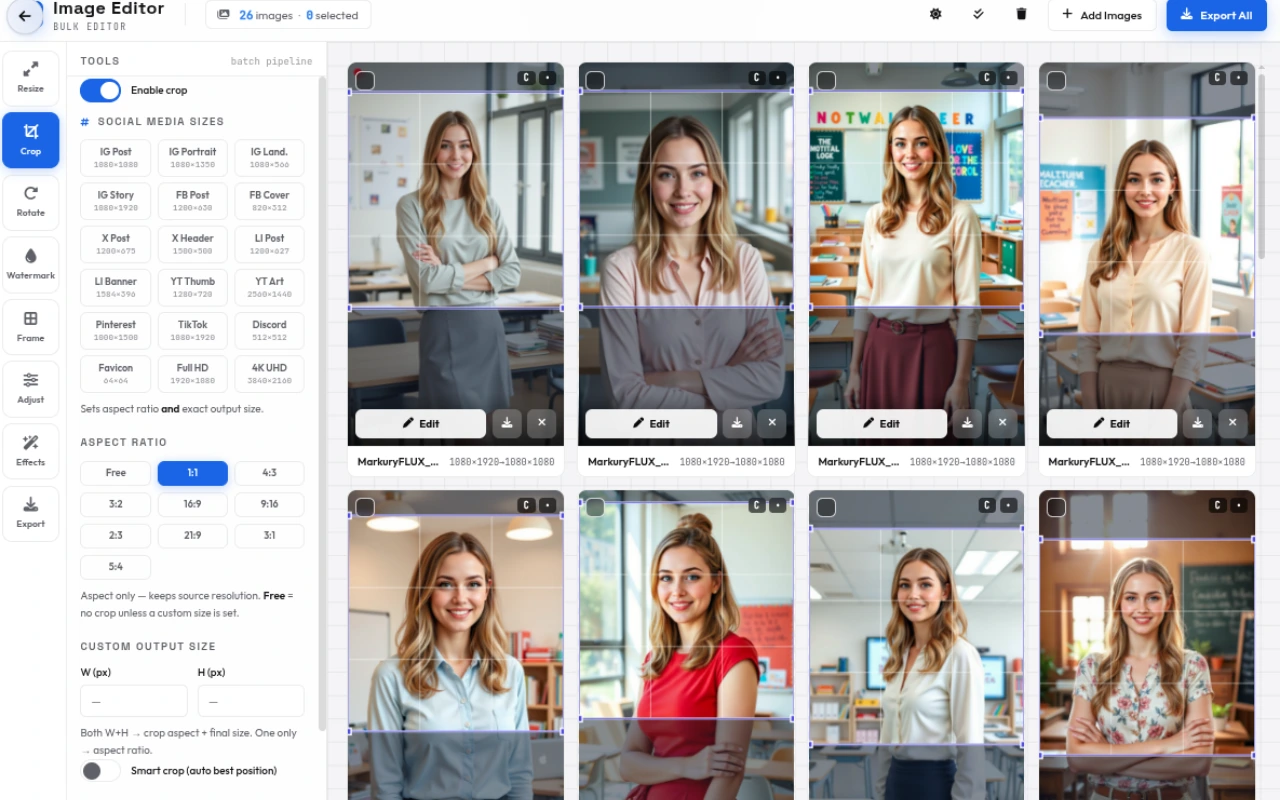
Drop any number of JPEG/PNG/WebP/GIF/BMP/AVIF images (paste with Ctrl+V, drag & drop) — a masonry gallery (2–5 cols) shows live thumbs (380px) and per-image overrides, while the global pipeline (resize→crop→rotate→watermark→frame→adjust→effects→export) applies to all.
Smart resize
Scale by percent (1–400% with 25/50/75/100/200 chips) or target file size (10–5000KB, 50/100/200/500 chips) with strategy (both/quality/dims) and method (Lanczos, High bicubic, Medium, Fast, Nearest, Pixelated) plus Only shrink toggle — size-target overrides export format.
Pro crop & shapes
18 social sizes (IG 1080, FB 1200×630, X 1200×675, YT 1280×720, TikTok 1080×1920, etc.) and 10 ratios (Free, 1:1, 4:3, 16:9, 9:16, 21:9), custom W×H, smart crop (saliency/edge/saturation/center), circle/rounded shapes with radius (0–200px) and JPEG shape background.
Rotate, flip & per-image crop
Default rotation 0/90/180/270 + fine -180–180° and H/V flip, plus per-image 90° CW/CCW, flip, angle and a draggable crop box (handles, 3×3 grid, Center crop) with blue watermark dot for per-image watermark position.
Watermark studio
Text watermark (© EditPhotosForFree, 6 fonts, 1–25% width, color, opacity 0–100%) or image watermark (upload, scale 2–100%, opacity) at 9 positions (TL–BR) with X/Y offset (-50–50%) and Tile repeat — per-image draggable.
Frame & padding
Border (1–80px, color, solid/double) and padding (0–200px, color) that expand the canvas — previewed live with checker background and applied before resize.
Adjust & effects
Global adjust (brightness -100–100, contrast, saturation, hue -180–180°, exposure) and effects (grayscale, sepia, invert 0–100%, blur 0–20px, vignette 0–100%, sharpen 0–100%) — each with per-image overrides and Use global reset.
Bulk rename & export
Batch rename with pattern tokens {name}/{index}/{w}/{h}/{date}/{time}, start # and padding (01/001/0001), live preview; export Original/PNG/JPEG/WebP at quality 30–100%, strip metadata toggle, and ZIP when multiple — progress modal with cancel, no upload.
How to use
A quick walkthrough, step by step.
Add images
Click Add Images, drop images onto the gallery or paste with Ctrl+V — JPEG, PNG, WebP, GIF, BMP and AVIF are supported, unlimited count.
The masonry gallery (8px rows) shows each image with its current dims (NAT→OUT) and chips (R/C/W/F/A/S) for active overrides.
Build the batch pipeline
Enable Resize — choose Percent (1–400%) or File KB target (10–5000KB with strategy) and method (Lanczos best).
Enable Crop — pick a social size (IG, FB, X, YT, TikTok etc.) or ratio (Free, 1:1, 16:9…), set custom W×H, toggle Smart crop, and pick circle/rounded with radius and shape background.
Set default Rotate (0/90/180/270 + fine -180° and H/V flip) — per-image rotation lives in each card’s Edit dialog.
Watermark & frame
Enable Watermark — choose Text (font, 1–25% width, color) or Image (upload, scale 2–100%), set opacity, position (9-grid + X/Y offset) and Tile; drag the blue dot in Edit for per-image position.
Enable Frame Border (1–80px, color, solid/double) and Padding (0–200px, color) to add a matted border.
Adjust and add effects
Use Adjust sliders (brightness, contrast, saturation, hue, exposure) and Effects (grayscale, sepia, invert, blur, vignette, sharpen) — all global with per-image pencil overrides.
Click the pencil on any card to open the per-image Edit modal with its own crop box, rotation, adjust and effects — Reset this image clears overrides.
Batch rename (optional)
Toggle Batch rename, set Pattern like {name}_{index} or {name}_{w}x{h}_{date}, and add tokens via chips ({name}, {index}, {w}, {h}, {date}, {time}).
Set Start # and Padding (None, 01–99, 001–999, 0001–9999) and watch the live Rename preview (e.g., beach_001.png).
Export the batch
Choose Export Output: Original, JPEG, PNG or WebP; set Quality (30–100%, hidden for PNG) and JPEG background for transparency; toggle Strip metadata (re-encoding removes EXIF, untouched Original passes through).
Click Export All (or the header ZIP) — a progress modal shows per-file name and bar with Cancel; single images download directly, multiples download as image-editor-YYYY-MM-DD-HH-MM-SS.zip.
Frequently asked questions
Everything you need to know about Image Editor.
Can I edit many images at once?
Yes. This is a bulk editor — drop unlimited images (JPEG/PNG/WebP/GIF/BMP/AVIF, plus paste) and the global pipeline (resize→crop→rotate→watermark→frame→adjust→effects→export) applies to the whole batch, with per-image overrides via the pencil Edit dialog.
What does Smart crop do?
Smart crop uses saliency (edge + saturation + center bias at 96px) to find the best window for the target aspect — so faces and subjects stay centered — with a draggable crop box (3×3 grid, handles) you can still move by hand.
How does File KB resize work?
Set a target like 200KB and a strategy (Both, quality-first or dims-first) plus output format (JPEG/WebP/PNG). The encoder iteratively tunes quality and dimensions until the file is under the target — it overrides the Export format.
Can I add a watermark to every image?
Yes. Enable Watermark and choose Text (custom text, 6 fonts, 1–25% width, color, opacity 0–100%) or Image (upload, scale 2–100%). Pick one of 9 positions (TL to BR) with X/Y offset (-50–50%) and optional Tile repeat; per-image blue dot lets you move it per photo.
What is batch rename?
Toggle Batch rename and build a pattern with tokens {name} (original), {index} (with Start # and Padding 1/2/3/4), {w}/{h} (output dims), {date} YYYY-MM-DD and {time} HH-MM-SS. The live preview shows e.g., beach_001.png — sanitized for filesystem.
Will my photos be uploaded?
No. Everything runs locally in your browser — full-res images are decoded via createImageBitmap (thumb 380px, edit 1200px, preview 2600px) and never leave your device; Original format exports even pass through byte-for-byte when no ops are needed.
What export options are there?
Format: Original, JPEG, PNG or WebP; Quality 30–100% (hidden for PNG); JPEG background for transparency; Strip metadata toggle; then Export All downloads single files directly or a ZIP (image-editor-YYYY-MM-DD-HH-MM-SS.zip) for multiples, with a cancellable progress bar.
Can I undo an edit?
Per-image Edit has Reset this image (clears all overrides), and global Adjust/Effects have Reset buttons. Gallery selection (select all, delete selected with confirm) and the before/after split preview (Original/Processed divider drag) help you check.
Ready to try Image Editor?
Open it and start creating in seconds.
More free tools
Explore the rest of the EditPhotosForFree toolkit.