Drawing
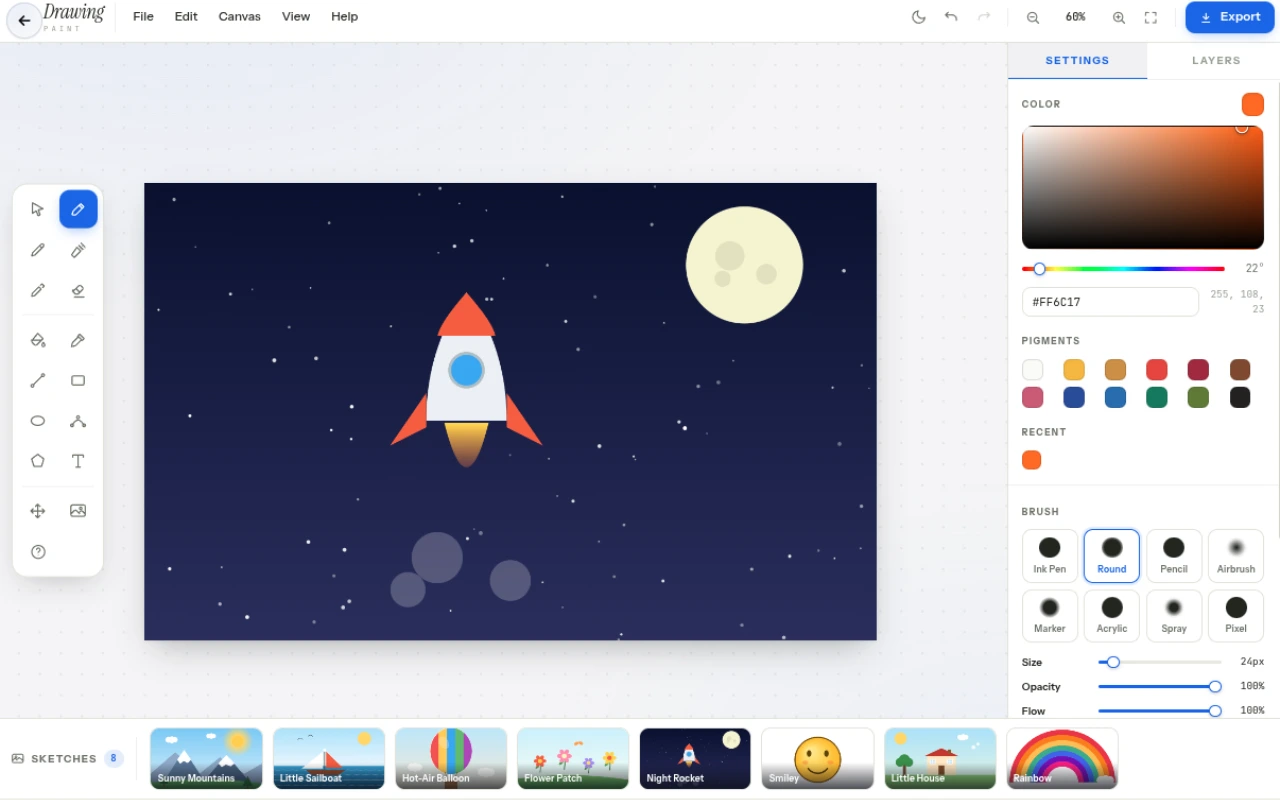
Draw and paint in your browser: 15 precision tools including live editable text, bézier curves and polygon fills, trace-over-photo mode with adjustable opacity, 8 one-click starter sketches, 8 brush presets, blend-mode layers and symmetry guides. Export PNG/JPG free — no sign-up, no watermark.
Features
Everything Drawing can do.
15 precision tools
Select/pointer, round brush, pencil, airbrush, marker, eraser, fill bucket, eyedropper, line, rectangle, ellipse, bézier curve, polygon fill, live text and pan — each with a tuned profile and hotkeys (V/B/P/A/M/E/G/I/L/R/O/C/N/T/H).
Live text objects
Click anywhere to place text, then keep editing forever — drag to move, corner-handle to rescale (8–500px), double-click to rewrite, Del to remove. Text renders vectorially into exports pixel-matched to the canvas.
Trace over photos
Load any image as a tracing reference — it floats over your art at adjustable opacity (5–100%) with instant hide/remove. Drag & drop supported, and the photo never appears in your exported PNG/JPG.
Starter sketch gallery
Eight hand-coded sample drawings — mountains, sailboat, balloon, flowers, rocket, smiley, house and rainbow — one click drops them on your layer as crisp vector art; toggle the bar from the status bar.
Fine-edge shape tools
Bézier Curve (click start · end · bend · commit) for smooth flowing lines and Polygon Fill (click points · Enter/double-click closes) for flat-color regions — the same techniques behind the built-in samples.
Brush presets & controls
8 presets (Ink Pen, Round, Pencil, Airbrush, Marker, Acrylic, Spray, Pixel) plus size (1–300px), opacity, flow, hardness, spacing (1–100%), stabilizer (0–95%) and pen min-size.
Full color studio
SV box + hue slider (0–360°), hex and RGB inputs, 12 pigments (Titanium White to Ivory Black) and 9 recent colors — Alt-click any stroke to pick.
Layers with blend modes
Add, duplicate, merge, reorder and delete layers; per-layer opacity (1–100%) and blend (Normal, Multiply, Screen, Overlay, Darken, Lighten) with eye toggle and thumb preview.
Symmetry guides
Off, vertical, horizontal, quad or radial symmetry (2–16 segments) with live red dashed guides on the canvas.
Canvas management
New canvas (1280×800, 1920×1080, 1024×1024, 800×600 or custom 1–8000px) with transparent/white/black background, resize anchored top-left, clear and fill canvas.
View & navigation
Zoom 5–800% (wheel, pinch, +/-), pan (Space+drag), fit to screen (Ctrl+0), actual size (Ctrl+1), 64px grid toggle (G), footer shows pos, zoom, dims, layer and strokes.
History & export
20-step history with undo/redo (Ctrl+Z/Y), then export PNG (transparent) or JPG (white base) — layers AND text objects composited in, reference photo left out. No watermark, no upload.
Starter sketch gallery
8 ready-to-use starter sketches across 2 categories — click a thumbnail to drop it on your active layer, then paint, recolor or trace over it.
Scenes
Complete little illustrations drawn entirely in code.
- Sunny Mountains
- Little Sailboat
- Hot-Air Balloon
- Little House
- Night Rocket
Fun & shapes
Playful subjects to remix, recolor and build on.
- Flower Patch
- Smiley
- Rainbow
How to use
A quick walkthrough, step by step.
Set up the canvas
Open New Canvas — pick 1280×800, 1920×1080, 1024×1024, 800×600 or a custom size (1–8000px).
Choose transparent, white or black background and start with the Round brush (24px, 100% opacity).
Pick colors & brushes
Drag the SV box and hue slider or type a hex; recent colors save automatically.
Switch presets (Ink Pen to Pixel) or tune size ([ ]), opacity, flow, hardness, spacing and stabilizer for the stroke you want.
Draw shapes & fine edges
Draw lines (L), rectangles (R) and ellipses (O) — hold Shift for 45°/square/circle — or fill (G) with tolerance (0–128).
For smooth flowing strokes use Curve (C): click start, click end, move to bend, click to commit.
For flat-color regions use Polygon Fill (N): click points, then close by clicking the first point, double-clicking or pressing Enter.
Trace over a photo
Click the reference-photo button (or drag & drop an image onto the canvas) — it floats above your art as a ghost overlay.
Slide the opacity (5–100%) until you can see both photo and strokes, draw on your layers, then hide or remove it. The photo is never included in exports.
Add editable text
Press T and click the canvas — type right on the painting; Esc or clicking away finishes.
Later: drag to move, pull the corner handle to rescale, double-click to rewrite, Del to remove. Text exports exactly where you framed it.
Work with layers & symmetry
Add layers, set blend and opacity, reorder or hide with the eye icon.
Enable V/H/Quad/Radial symmetry (2–16 segments) to mirror strokes with live guides.
Navigate & refine
Zoom with wheel/pinch (+/-), pan with Space+drag or H, toggle grid (G), and use Clear Layer or Fill Canvas from the Edit menu.
Undo/redo any stroke; the footer shows brush size, pos and stroke count.
Export
Click Export — choose PNG (transparent, keeps layers composited) or JPG (white base). Your text objects render into the file; the tracing reference stays out.
Download pigment-painting.png/jpg — free, private, no sign-up.
Frequently asked questions
Everything you need to know about Drawing.
Is this drawing app free?
Yes. Drawing is a free digital painting studio that runs 100% in your browser — no account, no watermark, no upload.
What tools are included?
Fifteen tools: select/pointer (V), round brush (B), pencil (P), airbrush (A), marker (M), eraser (E), fill bucket (G), eyedropper (I), line (L), rectangle (R), ellipse (O), bézier curve (C), polygon fill (N), live text (T) and pan (H) — each with a tuned hardness/flow/opacity profile.
Can I add text and edit it later?
Yes. Text lives as a movable object, not baked pixels: place it with T, then re-drag its position, rescale from 8–500px via the corner handle, double-click to rewrite the words at any time, or delete it. On export the text renders vectorially at exactly the position and size shown on canvas.
Can I trace over a photo?
Yes — that’s the reference mode. Load any image from the toolbar (or drag & drop it onto the canvas); it appears as a semi-transparent overlay you can dial from 5–100% opacity, hide instantly, or remove when finished. It sits above your art while drawing but is never composited into exported files.
What are curve and polygon tools for?
Fine edges. Curve (C) draws smooth quadratic béziers in three clicks — start, end, then bend; Polygon Fill (N) builds flat-color shapes from clicked points and closes on Enter or double-click. They’re the same techniques used to generate the built-in starter sketches.
What is the sketch gallery?
A toggleable bar (icon at the left of the status bar) holding eight programmatic sample drawings — Sunny Mountains, Little Sailboat, Hot-Air Balloon, Little House, Night Rocket, Flower Patch, Smiley and Rainbow. One click drops a crisp vector version onto your active layer to remix or trace.
How do layers and blend modes work?
You get up to many layers, each with eye visibility, thumb preview, name, opacity (1–100%) and blend (Normal, Multiply, Screen, Overlay, Darken, Lighten). Add, duplicate, merge down, move up/down or delete.
Can I pick colors precisely?
Yes. Use the 130px SV box + hue slider (0–360°), hex input (#RRGGBB) and RGB label, 12 pigments and 9 recent colors. Alt-click any stroke to eyedrop the composite.
What is stabilizer and min size?
Stabilizer (0–95%) smooths shaky strokes; min size (0–100%) sets the minimum diameter under pen pressure — so light presses make thinner lines.
Does it have symmetry?
Yes. Off, vertical, horizontal, quad and radial (2–16 segments) with live red dashed guides — great for mandalas and mirrored sketches.
How do I resize the canvas?
Use New Canvas (fresh) or Resize Canvas (keeps artwork anchored top-left, 1–8000px). Fit to screen (Ctrl+0) and Actual size (Ctrl+1) are one click.
How do I save my painting?
Click Export and choose PNG (transparent background, composited layers + text) or JPG (white base) at 92% quality — the file downloads as pigment-painting.png/jpg. Your tracing reference is never included.
What are the keyboard shortcuts?
V select · B/P/A/M/E/G/I/L/R/O/C/N/T/H tools · [ ] brush size · Space+drag pan · Ctrl+Z/Y undo/redo · Ctrl+N new · Ctrl+S export · Ctrl+0 fit · Ctrl+1 actual · G grid · Esc cancel/close sketches · ? help.
Ready to try Drawing?
Open it and start creating in seconds.
More free tools
Explore the rest of the EditPhotosForFree toolkit.