Image Distorter
Warp any photo with a hands-on liquefy brush. 15 distortion tools — bulge, pinch, swirl, twist, stretch, ripple and more — with size, strength, hardness and flow control, plus zoom, compare, split view and history. 100% in-browser, free, no upload.
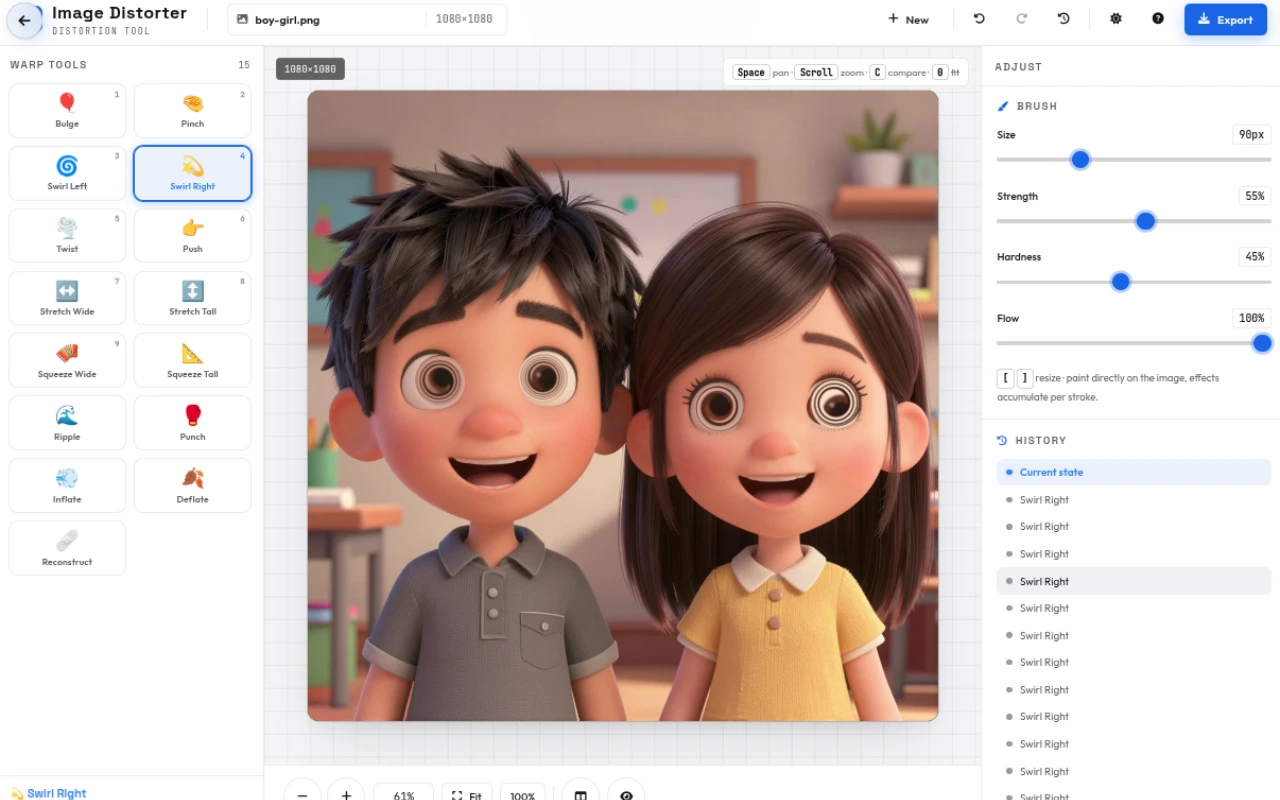
Features
Everything Image Distorter can do.
15 warp brushes
Sculpt with bulge, pinch, swirl left/right, twist, push, stretch wide/tall, squeeze wide/tall, ripple, punch, inflate, deflate and reconstruct — each with live name, icon and description.
Full brush control
Dial size (4–300px), strength (1–100%), hardness (0–100%) and flow (1–100%). Low flow builds gradually, high hardness keeps edges crisp; [ and ] resize instantly.
Reconstruct eraser
Paint the original photo back with the reconstruct brush to fix any stroke without undoing the whole edit — flow controls how much is restored per dab.
Pixel-perfect preview
Ring cursor scales with zoom and brush size, live interpolation samples bilinearly per stamp, and the canvas stays crisp at any zoom from 5% to 800%.
Zoom, pan & fit
Scroll to zoom at the cursor, pinch to zoom on touch, Space+drag or middle-drag to pan, and Fit (0) or 100% buttons to frame the image instantly.
Compare & split view
Hold Compare (C) to flash the original, or enable Split (draggable 2–98% divider with ORIGINAL/EDITED badges) to see before and after side-by-side.
History & sample faces
Unlimited undo/redo (Ctrl+Z/Y) with a clickable history stack, one-click Reset, and three procedural sample faces to start warping immediately — no upload needed.
Private export
Export PNG (lossless) or JPG with quality (40–100%), scale (0.5×, 1×, 2× up to 4096px) and JPG background color — sanitized filename, no server, no watermark.
Warp tools
15 ready-to-use warp tools across 3 categories — each one is pressure-aware and fully adjustable.
Basic Warps
Core liquefy moves for shaping faces and objects.
- Bulge
- Pinch
- Swirl Left
- Swirl Right
- Twist
- Push
Stretch & Squeeze
Directional scale for fun, dramatic proportions.
- Stretch Wide
- Stretch Tall
- Squeeze Wide
- Squeeze Tall
Advanced
Textured and gentle warps plus the fix-it brush.
- Ripple
- Punch
- Inflate
- Deflate
- Reconstruct
How to use
A quick walkthrough, step by step.
Load an image
Click Upload a photo, drag an image onto the window, or paste with Ctrl+V.
Or tap a sample face (Happy, Shocked, Grumpy) to start instantly.
Long images are auto-downscaled to 1800px on the long side for a fluid brush.
Pick a warp brush
Choose from 15 tools in the left Warp Tools panel — bulge, pinch, swirls, twists and more.
Tap 1–9 to switch quickly; the info panel shows the tool name and what it does.
Tune the brush
Set size with the slider or [ and ] keys, strength for intensity, hardness for falloff, and flow for build-up.
Low flow is forgiving — paint multiple passes to build the warp gradually.
Paint & compare
Paint directly on the photo; strokes interpolate every ~18% of the brush diameter for smooth warps.
Hold C or the eye icon to compare with the original, or drag the Split divider (2–98%) for side-by-side.
Navigate & refine
Scroll or pinch to zoom (5–800%) at the cursor, Space+drag to pan, 0 to fit, 1 to 100%.
Use reconstruct to paint back the original where you over-did it, or Undo/Redo and check the history list.
Export
Click Export, pick PNG (lossless) or JPG (smaller) and JPG background if needed.
Choose quality (40–100%) and scale (Half, Original, 2×), name the file, and download — no watermark, no upload.
Frequently asked questions
Everything you need to know about Image Distorter.
What is the image distorter / liquefy tool?
It is a hands-on warp studio that lets you push pixels by hand — bulge, pinch, swirl, twist, stretch, squeeze, ripple and more — with a pressure-aware brush, right in your browser.
How many warp tools are there?
There are 15 tools: bulge, pinch, swirl left/right, twist, push, stretch wide/tall, squeeze wide/tall, ripple, punch, inflate, deflate and reconstruct (eraser) — each with a tuned falloff and strength curve.
What do size, hardness and flow do?
Size (4–300px) sets the brush diameter; hardness (0–100%) sets the inner falloff (smooth vs hard edge); flow (1–100%) sets how much of the warp is applied per dab — low flow builds gradually.
Can I fix a mistake without undoing everything?
Yes. Select the reconstruct brush and paint over the area you want to restore — it blends the original photo back with the current flow amount, so you can fix a single stroke.
How do I compare with the original?
Hold the eye icon or press C to flash the original. Or enable Split view to get a draggable divider (2–98%) with ORIGINAL and EDITED badges side-by-side.
How do I zoom and pan?
Scroll at the cursor to zoom (5–800%), pinch with two fingers on touch, Space+drag or middle-drag to pan, 0 to fit, 1 to 100%. The ring cursor scales with zoom.
Can I use it on mobile?
Yes. Paint with one finger, pan and pinch-zoom with two fingers, and use the bottom transport hints — the UI adapts to touch.
What can I export?
Export PNG (lossless, keeps transparency) or JPG (smaller, with a chosen background color) at Half, Original or 2× scale (capped at 4096px) with quality 40–100% — fully offline.
Is it free and private?
Yes. It is 100% free, no sign-up, no watermark, and everything runs locally — your photos never leave your device.
Ready to try Image Distorter?
Open it and start creating in seconds.
More free tools
Explore the rest of the EditPhotosForFree toolkit.