Video Editor
Edit videos in your browser on a real multi-track timeline: trim, split, reorder and duplicate clips, add text, shapes, stickers and picture-in-picture, transitions, speed and fades, record a voiceover, and export MP4 (H.264) or WebM (VP9) with mixed audio — free, private, no sign-up.
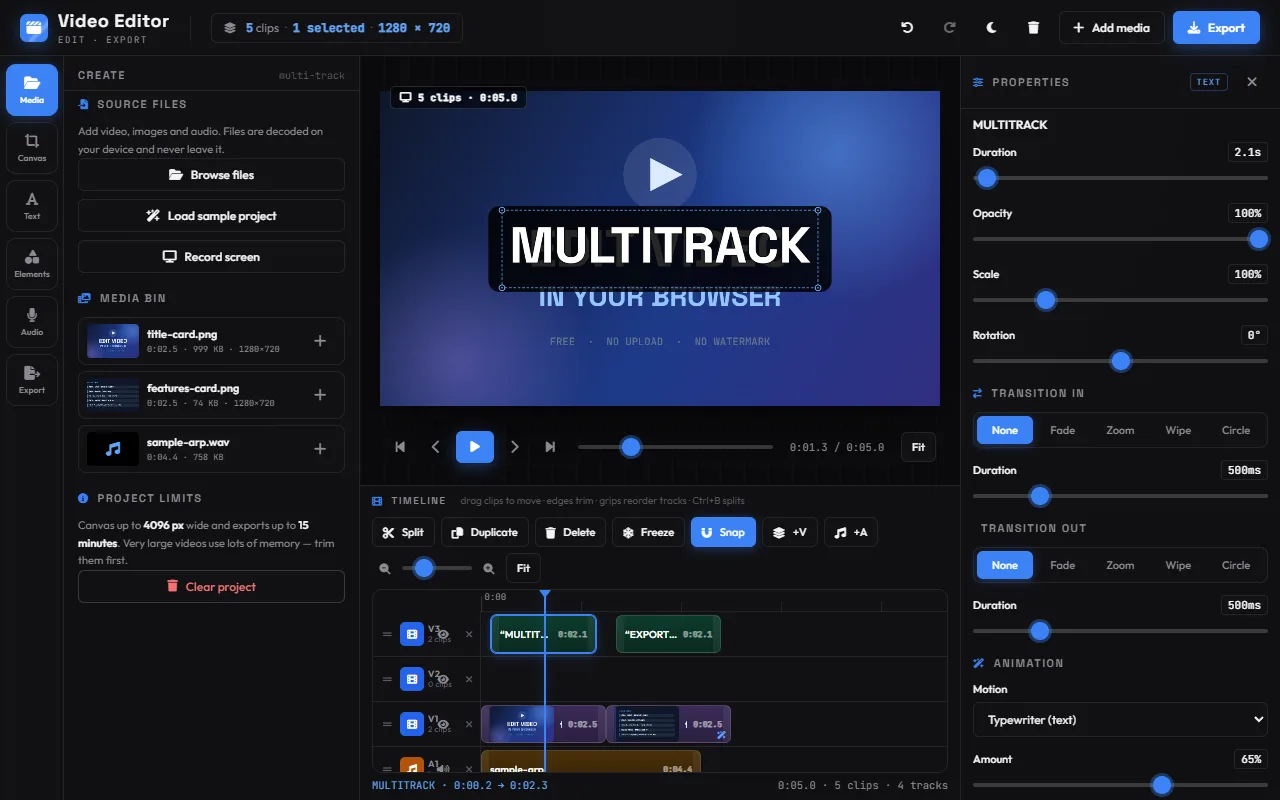
Video Editor Features
Everything Video Editor can do.
A real multi-track timeline
Dynamic, true multi-track editing like a desktop editor: every track is a generic layer — drag a clip past the top or bottom lane edge and a new track appears automatically, reorder tracks by dragging their grips, mute any lane, and drop any clip type on any lane — videos overlap and composite in z-order. Drag clips to move, edges to trim, split at the playhead, duplicate or delete, with snap and zoom. Ctrl+Z undoes anything.
Every format in, professional formats out
Open MP4, WebM, MOV, MKV, M4V and AVI video; MP3, WAV, M4A, AAC, OGG, FLAC and Opus audio; PNG, JPG, WebP, GIF, BMP and AVIF images. Export H.264 MP4 with AAC or VP9 WebM with Opus — 360p to 1080p at 24/30/60 fps.
Canvas presets for every platform
One tap to 9:16 (Reels / Shorts / TikTok), 1:1 (square), 4:5 (portrait), 16:9 (widescreen / YouTube), 3:4 or 21:9 — or set any custom size up to 4096 px and a background color. Preview and export always match.
Text that actually styles
Eight font families, size, bold, fill color, outline with adjustable width, optional background pill, left/center/right alignment and opacity — then drag it anywhere on the canvas. Text clips are editable at any time from the selection panel.
Picture-in-picture & side-by-side
Images land on the top-most track: drag to position, scale 10–300%, rotate, flip, set opacity, crop inset and opacity — make PiP reactions, watermarks, logos, collages and split-screen layouts with two overlays.
Transitions, animations & freeze frame
Fade, Zoom, Wipe or Circle-open transitions on any clip start or end — with matching audio crossfades — plus nine motion animations (Pulse, Bounce, Shake, Wobble, Spin, Float, Zoom, Typewriter for text). Speed 0.25×–4× per video or audio clip, plus a one-click freeze frame.
Pro adjustments per clip
Brightness, contrast, saturation, hue, exposure and blur — rendered identically in preview and export. Contain / cover / stretch fit and a crop inset for tighter frames. Flip horizontally or vertically in one click. Plus a chroma key (green screen, blue screen or any color) with Similarity, Edge feather, Spill removal and Edge erode for clean transparent edges.
Audio: music, voiceover, fades
Upload a track, record your voice in the browser, or record your screen with audio — then set per-clip volume, fade in/out and speed. Everything is mixed and encoded into the export as AAC or Opus.
Free, private, unlimited
No account, no upload, no watermark, no paywall. Decode, composite and encode all happen on your device with WebCodecs — the file you download is rendered frame-by-frame from your timeline.
Everything the Video Editor can do
Formats, tracks, transitions and timeline tools — a quick reference.
Import formats
Decoded entirely on your device.
- MP4
- WebM
- MOV / M4V
- MKV
- AVI
- MP3 / WAV
- M4A / AAC
- OGG / FLAC / Opus
- PNG / JPG / WebP
- GIF / BMP / AVIF
Export formats
Hardware-encoded via WebCodecs.
- MP4 (H.264 + AAC)
- WebM (VP9 + Opus)
- 360p / 480p / 720p / 1080p
- 24 / 30 / 60 fps
- 1–15 Mbps bitrate
- Fast-start MP4 for web playback
Tracks
Top to bottom, exactly as they composite.
- Unlimited generic tracks — any clip type on any lane
- Auto-create a track by dragging past a lane edge
- Drag clips between lanes
- Overlap compositing in z-order
- Per-track mute (excluded from export)
Transitions
Blend between any two adjacent clips; fade anything into the background. Audio crossfades too.
- Transition in: None / Fade / Zoom / Wipe / Circle
- Transition out: None / Fade / Zoom / Wipe / Circle
- 100–2000 ms duration
- Audio crossfades included
Animations
Motion for the whole clip — rendered in preview and baked into exports.
- None
- Pulse
- Bounce
- Shake
- Wobble
- Spin
- Float
- Zoom (Ken Burns)
- Typewriter (text)
Editing tools
Frame-accurate, keyboard-first.
- Drag to move
- Edge-drag to trim
- Split at playhead (Ctrl+B)
- Duplicate (Ctrl+D)
- Delete (Del)
- Freeze frame
- Snap to edges / playhead
- Undo / redo (Ctrl+Z / Ctrl+Y)
- Timeline zoom + fit
Canvas presets
One tap for social formats.
- 9:16 Reels / Shorts / TikTok
- 1:1 square
- 4:5 portrait feed
- 16:9 widescreen / YouTube
- 3:4 classic portrait
- 21:9 ultrawide
- Custom size ≤ 4096 px
- Canvas background color
How to use Video Editor
A quick walkthrough, step by step.
Load your media
Drop a video, audio file or image anywhere on the page, or click Add media and browse — or record your screen straight from the Media tab. Media lands on the bottom-most track (the lowest layer).
No file handy? Click Load sample project for a ready-made title-card-to-features video with text clips and an audio track, then press Space to play it.
Arrange the timeline
Drag clips to move them — any clip can live on any track, and videos overlap freely; compositing follows track order (index 0 is the top layer). Reorder tracks by dragging their grip handles on the left edge of a lane; add tracks with the +Track button — or drag any clip past the top or bottom lane edge and a new track is created automatically.
Drag a clip's left or right edge to trim it (trims are bounded by the source). Move the playhead over a clip and Split (Ctrl+B) to cut it, Duplicate (Ctrl+D) or Delete (Del).
Snap toggle keeps clips aligned to the playhead and to each other's edges; use the zoom slider (or Fit) for precision.
Set the canvas
Open the Canvas tab: pick 9:16, 1:1, 4:5, 16:9, 3:4 or 21:9, or type a custom size, and choose the background color behind your clips.
Preview and export use the same canvas, so what you see is what you download.
Add text, shapes & picture-in-picture
Text tab: type your caption, pick a font, size, outline, background pill and alignment, then Add text — drag it directly on the preview to position it.
Elements tab: add from 16 shapes or emoji stickers, upload an overlay image (logo, watermark, reaction cam), or upload/paste/drag-drop any SVG (icons, logos, illustrations) — SVG elements land on the overlay track as repositionable, infinitely scalable elements. New elements land on the top-most track — scale, rotate, flip and set opacity in the properties panel.
Shapes and captions can sit anywhere on screen — tracks composite in z-order (top of the stack wins).
Polish with transitions, animations & adjustments
Select any clip and set a transition-in or transition-out (Fade, Zoom, Wipe or Circle) with its duration — adjacent clips blend, lone clips ramp against the background, and audio crossfades too.
Pick a motion animation for the whole clip — Pulse, Bounce, Shake, Wobble, Spin, Float, Zoom (Ken Burns) or Typewriter for text — and tune its amount. Preview and export match exactly.
Set speed 0.25×–4× on video or audio clips, or hit Freeze (the snowflake) to drop a still of the current frame onto the overlay lane.
Adjust brightness, contrast, saturation, hue, exposure and blur per clip.
Export & download
Open the Export tab: choose MP4 (H.264) or WebM (VP9), 360/480/720/1080p, frame rate and bitrate.
Click Export — frames are rendered one by one from your timeline and encoded on your device. Audio is mixed offline and written in as AAC (MP4) or Opus (WebM).
Tick-tock: 1080p takes a while; 720p is the sweet spot for most uses. The whole process runs locally — nothing is uploaded, ever.
Frequently asked questions about Video Editor
Everything you need to know about Video Editor.
Is the Video Editor really free and private?
Yes. Decoding, compositing, audio mixing and encoding all happen in your browser on your device — files never leave your machine. No account, no upload, no watermark, no paywall, and no file-count or daily limits beyond your memory and patience.
Which formats can I open and what can I export?
Open: MP4, WebM, MOV/M4V, MKV, AVI video; MP3, WAV, M4A, AAC, OGG, FLAC, Opus audio; PNG, JPG, WebP, GIF, BMP, AVIF and SVG images. Export: MP4 (H.264 + AAC) or WebM (VP9 + Opus), at 360p, 480p, 720p or 1080p, 24/30/60 fps, 1–15 Mbps. MP4 downloads get fast-start metadata so they stream immediately.
How do tracks work?
The timeline is fully multi-track and every track is a generic layer — no video/audio lanes. You start with three starter layers; drag any clip past the top or bottom lane edge and a new track appears automatically (or use the +Track button). Reorder tracks by dragging the grip on the left edge of a lane, mute any lane, and delete it (with a confirmation) — tracks hold any clip type and videos overlap. Index 0 (top of the stack) composites on top; new uploads land on the bottom-most track, and new text, shapes and stickers land on the top-most track. Each track can be muted independently, and muted tracks are excluded from preview and export.
Can I make picture-in-picture or side-by-side videos?
Yes — that is exactly what the top-most track is for. Upload an image or second video — it lands on the top-most track — then drag it anywhere and scale it (10–300%). For side-by-side, add two overlays sized to halves of the canvas; for PiP, place one in a corner at ~25% scale. Rotation, flip, crop and opacity are all available in the selection panel.
Can I add music, a voiceover, or both?
Both. Upload any audio file (or record your voice in the browser with the mic button — it lands at the end of the timeline), set volume, fade-in/out and speed per clip. Video clips carry their own audio too. Everything is mixed down with an offline audio graph and encoded as AAC (MP4) or Opus (WebM).
Can I remove a green screen (chroma key)?
Yes. Select a video or image clip and open the Chroma key section in the properties panel, enable the toggle, and pick the backdrop color (one-click Green or Blue presets, or any custom color). Refine the edge with Similarity (how much color is removed), Edge feather (soft blended border), Spill removal (takes the color fringe off your subject) and Edge erode (shrinks the remaining edge by a pixel or two for the cleanest cut-outs). It is rendered per-frame from the timeline, so preview and export match exactly — no separate keying pass needed.
How do transitions work?
Every clip has two independent transitions: in and out. For each, pick Fade, Zoom, Wipe or Circle-open with a duration of 100–2000 ms. The in-transition blends the clip in — against the previous adjacent clip on the same track if there is one, otherwise against the background. The out-transition ramps it back out at the end of its duration. Audio on transitioning clips crossfades accordingly.
Can I change a clip's speed?
Yes — select a video or audio clip and drag the speed slider from 0.25× (quarter speed) to 4×. The timeline duration follows the speed automatically, exports are re-timed exactly, and audio is resampled to match (no chipmunking drift, it just changes pitch naturally like a tape deck).
How do I freeze a frame (pause on a still)?
Hit Freeze (snowflake icon) at any playhead position — the current full frame is captured as an image clip on the top-most track for 1.5 seconds, ready to trim, scale or reposition.
Are there limits?
Projects are capped at 15 minutes and canvases at 4096 px, to keep exports feasible on phones. Very large source videos use lots of memory — trim them first. Export needs WebCodecs: Chrome, Edge and Safari 16.4+ have it; recent Firefox does too. If your browser lacks it, everything except final export encoding still works.
Why doesn't my exported video play in very old software?
MP4 (H.264) plays essentially everywhere; the export uses high-quality settings and 2-second keyframes. WebM (VP9) is for the open web — YouTube ingests both. If some legacy player balks, convert the MP4 with any standard converter, or play it in VLC.
Is there a watermark or export fee?
Never. There is no watermark — on any resolution, for any length — and no paid tier. Clideo and similar tools charge for HD/4K and remove watermarks only for subscribers; this one is simply free, because it's all rendered on your device.
Keyboard shortcuts you should know
Space = play/pause, ←/→ = back/forward 1s (Shift = 5s), Home/End = seek to start/end, Ctrl+B = split at playhead, Ctrl+D = duplicate clip, Ctrl+E = open Export tab, Del = delete selected, Ctrl+Z / Ctrl+Y (or Ctrl+Shift+Z) = undo/redo.
Ready to try Video Editor?
Open it and start creating in seconds.
More free tools
Explore the rest of the EditPhotosForFree toolkit.