Image Editor
Edit hundreds of images at once in your browser — batch resize, crop to social sizes, watermark, frames, adjustments and effects, with live preview and export to JPEG, PNG, WebP or ZIP. Free, private, no sign-up.
Features
Everything Image Editor can do.
Unlimited batch pipeline
Drop any number of JPEG/PNG/WebP/GIF/BMP/AVIF images (paste with Ctrl+V, drag & drop) — a masonry gallery (2–5 cols) shows live thumbs (380px) and per-image overrides, while the global pipeline (resize→crop→rotate→watermark→frame→adjust→effects→export) applies to all.
Smart resize
Scale by percent (1–400% with 25/50/75/100/200 chips) or target file size (10–5000KB, 50/100/200/500 chips) with strategy (both/quality/dims) and method (Lanczos, High bicubic, Medium, Fast, Nearest, Pixelated) plus Only shrink toggle — size-target overrides export format.
Pro crop & shapes
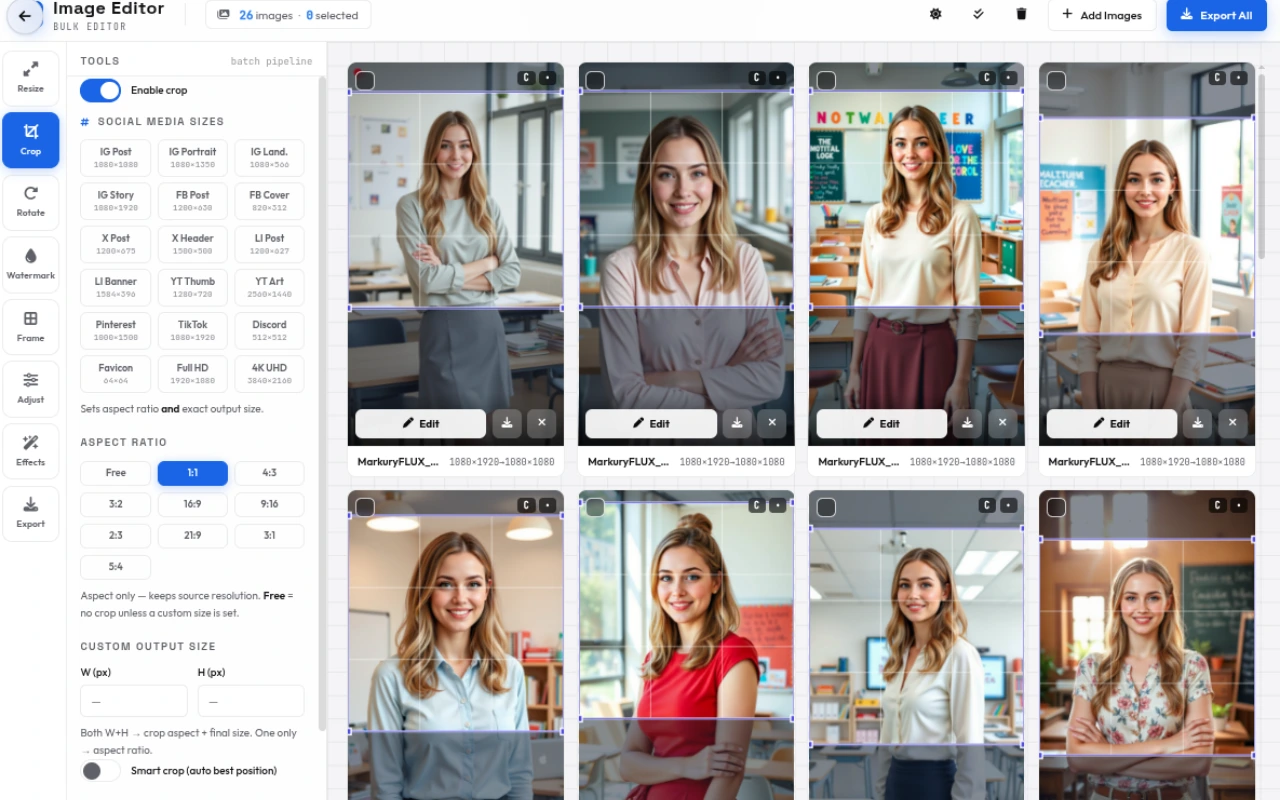
18 social sizes (IG 1080, FB 1200×630, X 1200×675, YT 1280×720, TikTok 1080×1920, etc.) and 10 ratios (Free, 1:1, 4:3, 16:9, 9:16, 21:9), custom W×H, smart crop (saliency/edge/saturation/center), circle/rounded shapes with radius (0–200px) and JPEG shape background.
Rotate, flip & per-image crop
Default rotation 0/90/180/270 + fine -180–180° and H/V flip, plus per-image 90° CW/CCW, flip, angle and a draggable crop box (handles, 3×3 grid, Center crop) with blue watermark dot for per-image watermark position.
Watermark studio
Text watermark (© EditPhotosForFree, 6 fonts, 1–25% width, color, opacity 0–100%) or image watermark (upload, scale 2–100%, opacity) at 9 positions (TL–BR) with X/Y offset (-50–50%) and Tile repeat — per-image draggable.
Frame & padding
Border (1–80px, color, solid/double) and padding (0–200px, color) that expand the canvas — previewed live with checker background and applied before resize.
Adjust & effects
Global adjust (brightness -100–100, contrast, saturation, hue -180–180°, exposure) and effects (grayscale, sepia, invert 0–100%, blur 0–20px, vignette 0–100%, sharpen 0–100%) — each with per-image overrides and Use global reset.
Bulk rename & export
Batch rename with pattern tokens {name}/{index}/{w}/{h}/{date}/{time}, start # and padding (01/001/0001), live preview; export Original/PNG/JPEG/WebP at quality 30–100%, strip metadata toggle, and ZIP when multiple — progress modal with cancel, no upload.
How to use
A quick walkthrough, step by step.
Add images
Click Add Images, drop images onto the gallery or paste with Ctrl+V — JPEG, PNG, WebP, GIF, BMP and AVIF are supported, unlimited count.
The masonry gallery (8px rows) shows each image with its current dims (NAT→OUT) and chips (R/C/W/F/A/S) for active overrides.
Build the batch pipeline
Enable Resize — choose Percent (1–400%) or File KB target (10–5000KB with strategy) and method (Lanczos best).
Enable Crop — pick a social size (IG, FB, X, YT, TikTok etc.) or ratio (Free, 1:1, 16:9…), set custom W×H, toggle Smart crop, and pick circle/rounded with radius and shape background.
Set default Rotate (0/90/180/270 + fine -180° and H/V flip) — per-image rotation lives in each card’s Edit dialog.
Watermark & frame
Enable Watermark — choose Text (font, 1–25% width, color) or Image (upload, scale 2–100%), set opacity, position (9-grid + X/Y offset) and Tile; drag the blue dot in Edit for per-image position.
Enable Frame Border (1–80px, color, solid/double) and Padding (0–200px, color) to add a matted border.
Adjust and add effects
Use Adjust sliders (brightness, contrast, saturation, hue, exposure) and Effects (grayscale, sepia, invert, blur, vignette, sharpen) — all global with per-image pencil overrides.
Click the pencil on any card to open the per-image Edit modal with its own crop box, rotation, adjust and effects — Reset this image clears overrides.
Batch rename (optional)
Toggle Batch rename, set Pattern like {name}_{index} or {name}_{w}x{h}_{date}, and add tokens via chips ({name}, {index}, {w}, {h}, {date}, {time}).
Set Start # and Padding (None, 01–99, 001–999, 0001–9999) and watch the live Rename preview (e.g., beach_001.png).
Export the batch
Choose Export Output: Original, JPEG, PNG or WebP; set Quality (30–100%, hidden for PNG) and JPEG background for transparency; toggle Strip metadata (re-encoding removes EXIF, untouched Original passes through).
Click Export All (or the header ZIP) — a progress modal shows per-file name and bar with Cancel; single images download directly, multiples download as image-editor-YYYY-MM-DD-HH-MM-SS.zip.
Frequently asked questions
Everything you need to know about Image Editor.
Can I edit many images at once?
Yes. This is a bulk editor — drop unlimited images (JPEG/PNG/WebP/GIF/BMP/AVIF, plus paste) and the global pipeline (resize→crop→rotate→watermark→frame→adjust→effects→export) applies to the whole batch, with per-image overrides via the pencil Edit dialog.
What does Smart crop do?
Smart crop uses saliency (edge + saturation + center bias at 96px) to find the best window for the target aspect — so faces and subjects stay centered — with a draggable crop box (3×3 grid, handles) you can still move by hand.
How does File KB resize work?
Set a target like 200KB and a strategy (Both, quality-first or dims-first) plus output format (JPEG/WebP/PNG). The encoder iteratively tunes quality and dimensions until the file is under the target — it overrides the Export format.
Can I add a watermark to every image?
Yes. Enable Watermark and choose Text (custom text, 6 fonts, 1–25% width, color, opacity 0–100%) or Image (upload, scale 2–100%). Pick one of 9 positions (TL to BR) with X/Y offset (-50–50%) and optional Tile repeat; per-image blue dot lets you move it per photo.
What is batch rename?
Toggle Batch rename and build a pattern with tokens {name} (original), {index} (with Start # and Padding 1/2/3/4), {w}/{h} (output dims), {date} YYYY-MM-DD and {time} HH-MM-SS. The live preview shows e.g., beach_001.png — sanitized for filesystem.
Will my photos be uploaded?
No. Everything runs locally in your browser — full-res images are decoded via createImageBitmap (thumb 380px, edit 1200px, preview 2600px) and never leave your device; Original format exports even pass through byte-for-byte when no ops are needed.
What export options are there?
Format: Original, JPEG, PNG or WebP; Quality 30–100% (hidden for PNG); JPEG background for transparency; Strip metadata toggle; then Export All downloads single files directly or a ZIP (image-editor-YYYY-MM-DD-HH-MM-SS.zip) for multiples, with a cancellable progress bar.
Can I undo an edit?
Per-image Edit has Reset this image (clears all overrides), and global Adjust/Effects have Reset buttons. Gallery selection (select all, delete selected with confirm) and the before/after split preview (Original/Processed divider drag) help you check.
Ready to try Image Editor?
Open it and start creating in seconds.
More free tools
Explore the rest of the EditPhotosForFree toolkit.